Subtitles 101
As you download movies or TV episodes, you will notice that some include subtitles whilst others do not. This can be for various reasons. For early releases such as HDCAMs, subtitles need to be manually created and added later. With later releases (WEBDL’s, Blu-ray, etc), the person encoding the video decides whether or not to include them.
Subtitles allow members:
1. with impaired hearing to enjoy watching movies, etc. This can include dialogue and descriptions of sounds
2. to watch content in other languages
3. to deal with background noise
Subtitle files may include:
1. Text of spoken content
2. Text of spoken content and other descriptions such as sounds for hearing impaired people
3. Non-English only spoken content
Subtitles files are very small files (usually only a few KB), are generally easy to find and are simple to add to your video content. Whilst there are a number of subtitle formats available, the most common have a “.srt” (Subtitle Rip Text) extension. These files include the text to be displayed on the screen and the timing for doing so.
Popular sources of Subtitle files
Code:Copy to clipboard
https://yts-subs.com/

https://www.opensubtitles.org/en/search/subs

https://www.addic7ed.com/

https://www.podnapisi.net/

https://www.tvsubtitles.net/

http://www.moviesubtitles.org/

http://www.tvsubs.net/

https://subsource.net

https://subdl.com/
When obtaining subtitle files from these sites:
1. Use the search function to find the movie/TV series that you want. It can be helpful to include the year, as many titles have been used a number of times. Ensure that you choose the right one!
2. Select the language of the subtitle that you want to display.
3. Ideally, choose the name of the video file that you have already downloaded. If that is not available, choose one that corresponds most closely with your video file (eg. WEBDL, BluRay). When in doubt, download more than one to try as they are tiny files.
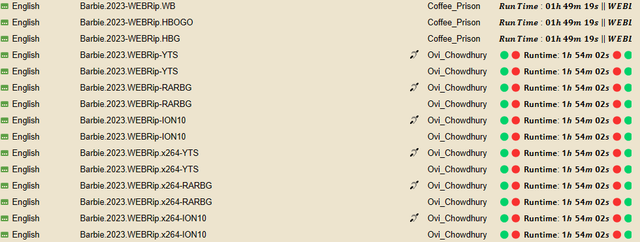
Once you have downloaded a subtitle file, extract it using WinRAR (or other program) to the directory where your video file is stored. To keep things simple, make sure the subtitle filename is the same as the video file (excluding the .srt extension). If it is different, copy the video filename (excluding the extension) and paste it as the new subtitle name (see example below). This will allow most video players to run the subtitle file with the video file.

Editing an Existing SRT File
Occasionally, you may wish to edit or modify a subtitle file. An example of this may include if you want to remove descriptions of sounds for hearing impaired. To easily edit this out, I use the “Subtitle Edit” program which is freeware.
Code:Copy to clipboard
https://github.com/SubtitleEdit/subtitleedit/releases
Once you have installed “Subtitle Edit”, use it to open your subtitle file and select the following option in the TOOLS menu:
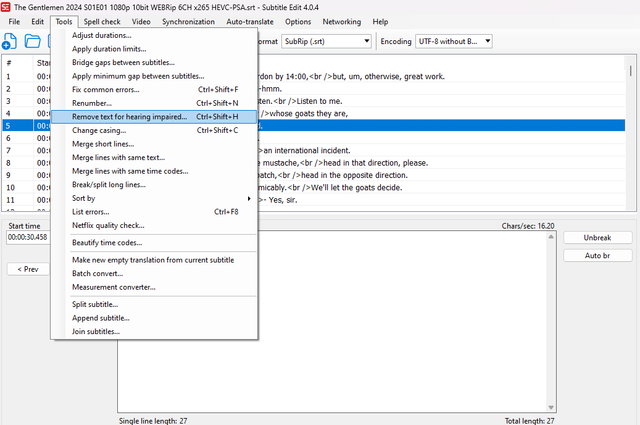
Choose the type of brackets that the hearing-impaired text is inside and APPLY to remove the hearing-impaired descriptive text then SAVE the file.
If you have any questions about subtitle files, you should raise them in the Help Center: https://forum.dirtywarez.com/forums/the-help-center.82/